> ## Documentation Index
> Fetch the complete documentation index at: https://docs.neopal.ai/llms.txt
> Use this file to discover all available pages before exploring further.
# Automation
> Automation helps you streamline and scale your entire sales and customer care processes. With just a few clicks, you can set up intelligent workflows that run automatically — triggered by customer behavior, admin actions, or scheduled timing.
### Automation flows list
This is where you’ll see all your existing automation flows.
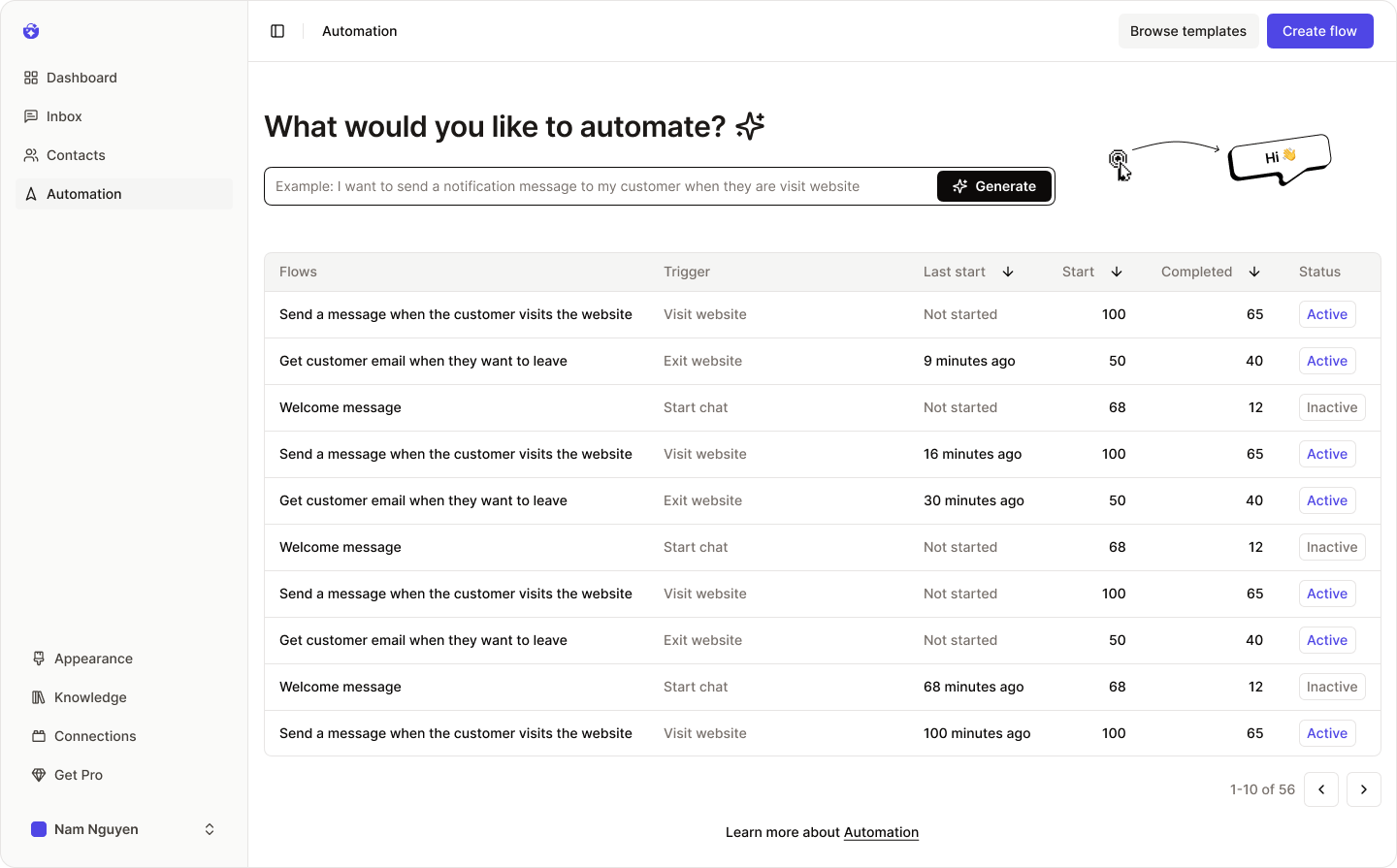 For each flow, you can quickly view:
* **Trigger type**
* **Last run time**
* **Total executions**
* **Number of completions**
* **Current status (on/off)**
To view or edit a flow in detail, simply click on it.
**Creating a New Flow**
There are three ways to create a new automation flow:
1. **Create manually**: Click the **Create flow** button in the header to start from scratch.
2. **Use a template**: Click **Browse templates** to choose from hundreds of ready-made flows.
3. **AI-generated flow**: Write a prompt describing what you want (e.g., *“Send a greeting when a customer visits the website”*) and click **Generate** to let AI build it for you.
### Automation flow templates
With **Flow Templates**, you can launch ready-made flows in seconds.
For each flow, you can quickly view:
* **Trigger type**
* **Last run time**
* **Total executions**
* **Number of completions**
* **Current status (on/off)**
To view or edit a flow in detail, simply click on it.
**Creating a New Flow**
There are three ways to create a new automation flow:
1. **Create manually**: Click the **Create flow** button in the header to start from scratch.
2. **Use a template**: Click **Browse templates** to choose from hundreds of ready-made flows.
3. **AI-generated flow**: Write a prompt describing what you want (e.g., *“Send a greeting when a customer visits the website”*) and click **Generate** to let AI build it for you.
### Automation flow templates
With **Flow Templates**, you can launch ready-made flows in seconds.
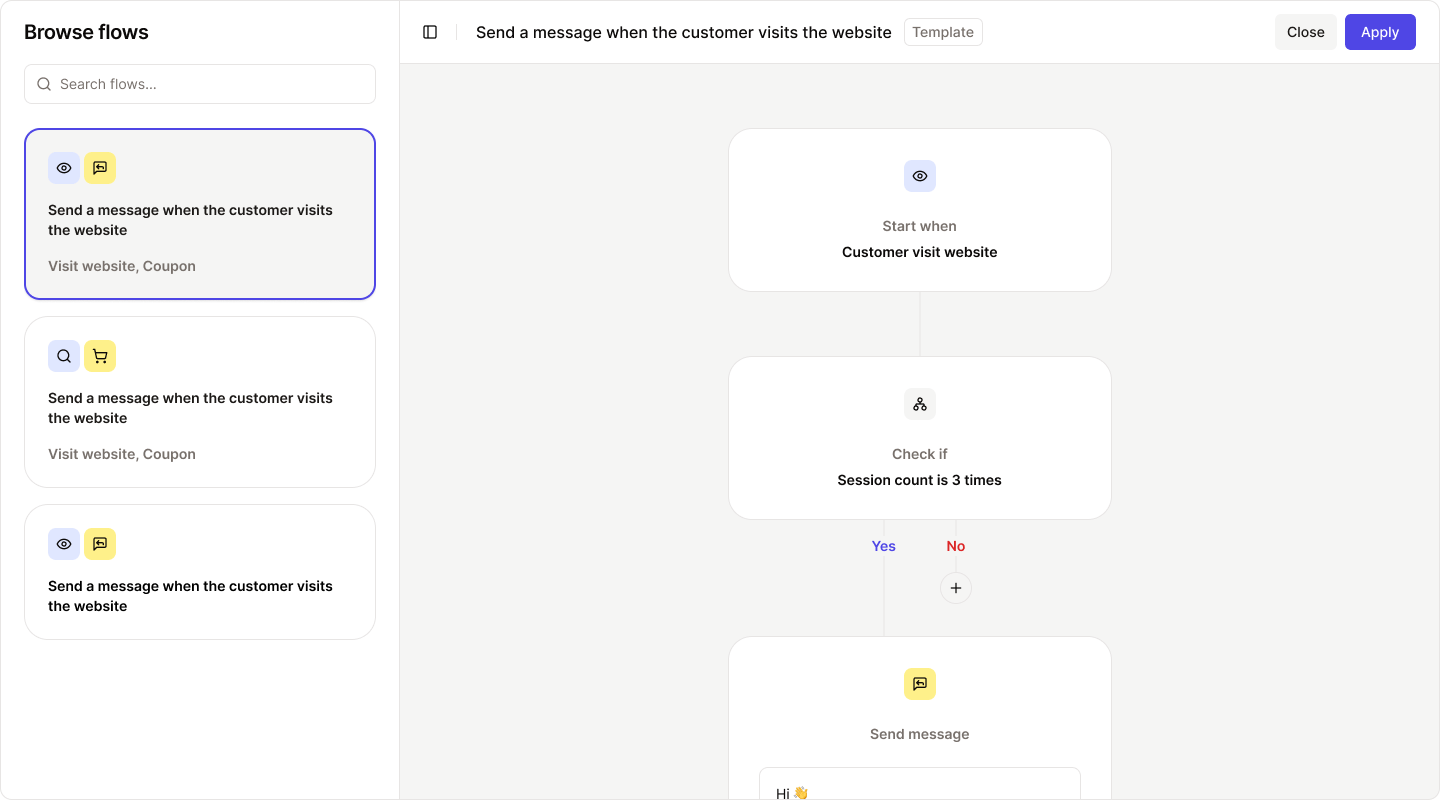 Browse the templates from the left panel, select a flow to preview on the right, and click **Apply** if it suits your needs.
You can still edit all flow details afterward.
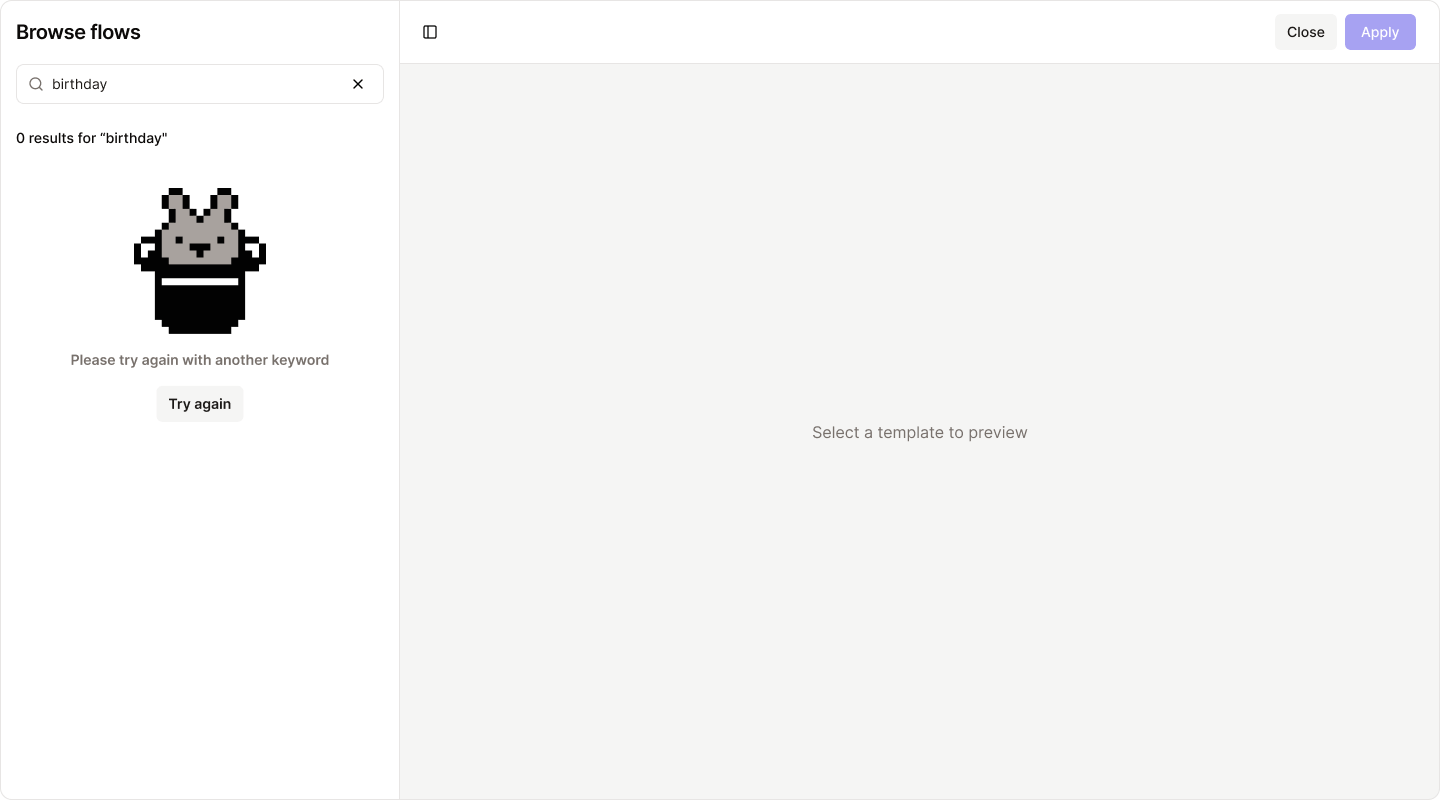
Use the search bar to find templates by keywords related to triggers, conditions, or message content.
> If no results appear, try using shorter or more general keywords.
Browse the templates from the left panel, select a flow to preview on the right, and click **Apply** if it suits your needs.
You can still edit all flow details afterward.
Use the search bar to find templates by keywords related to triggers, conditions, or message content.
> If no results appear, try using shorter or more general keywords.
 ### Flow settings
Each flow has a name and description, which help you stay organized.
### Flow settings
Each flow has a name and description, which help you stay organized.
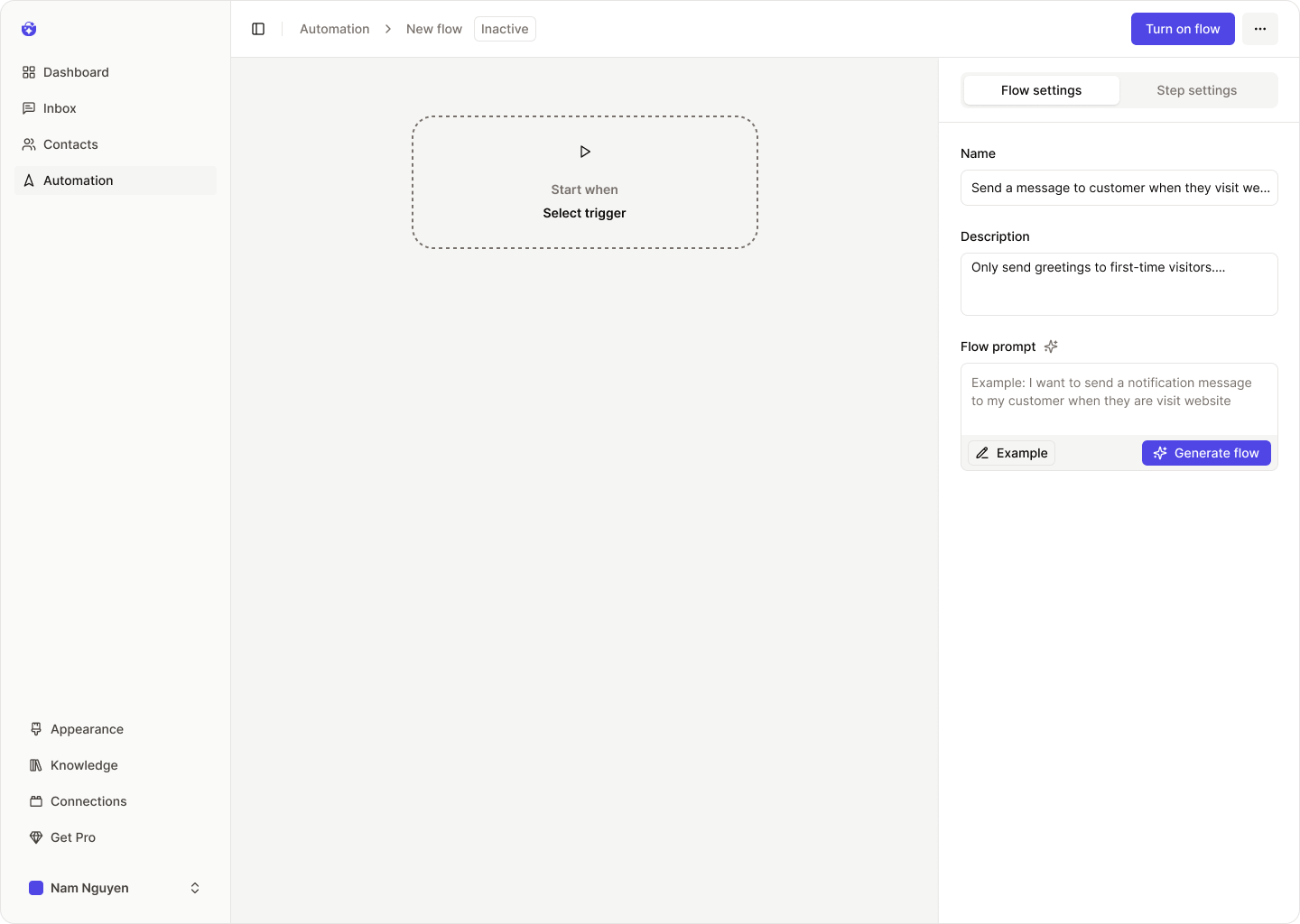 ### Generate flow (AI)
You can describe what you’d like your automation to do, and click **Generate flow**.
### Generate flow (AI)
You can describe what you’d like your automation to do, and click **Generate flow**.
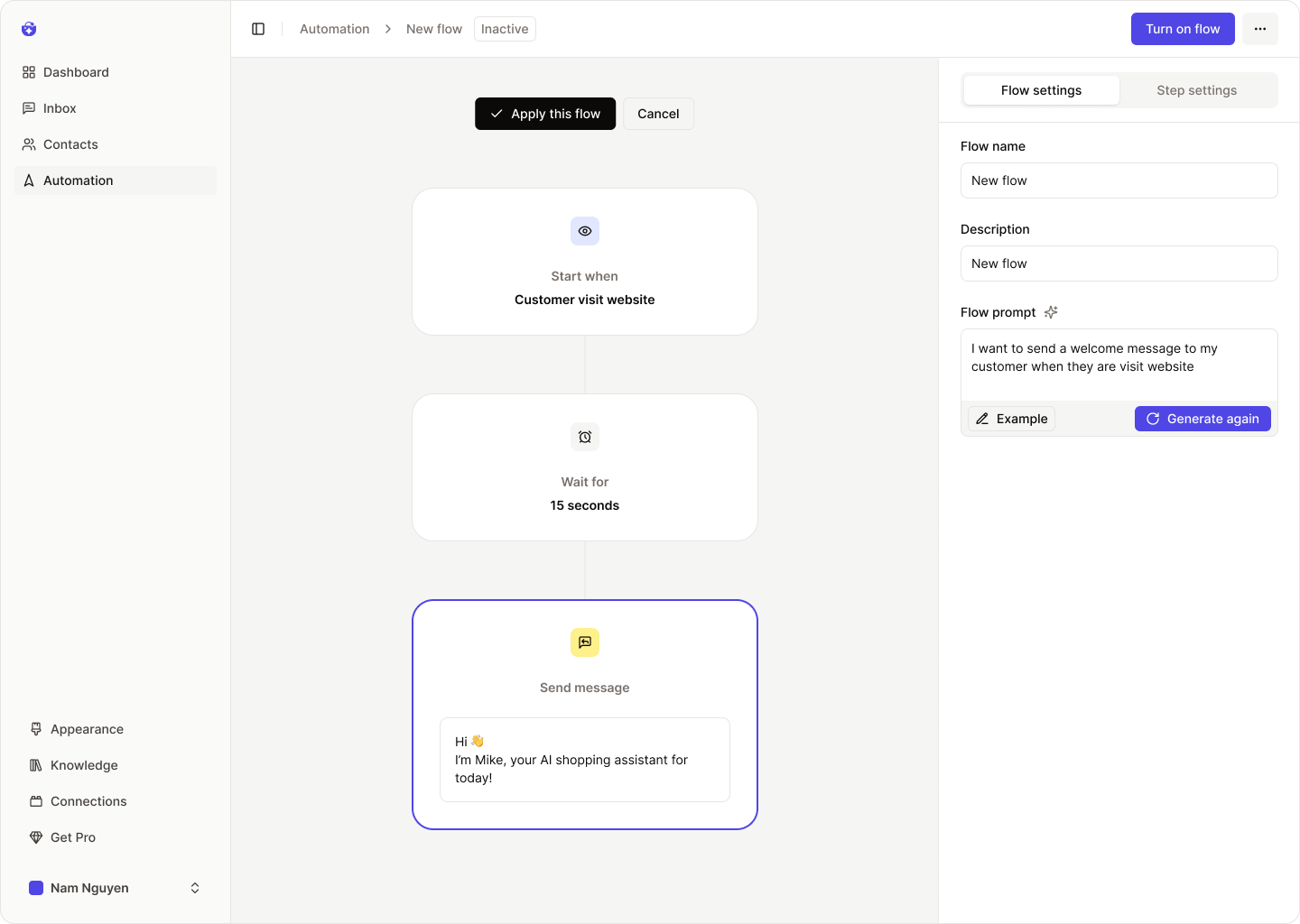 AI will build a complete draft of the flow and show you a preview.
* Click **Apply this flow** to activate the generated version.
* Not happy? Rewrite your description and click **Generate again**.
* Or click **Cancel** to return to your existing flow without changes.
### Edit trigger
The **Trigger** is the starting condition that activates your flow.
AI will build a complete draft of the flow and show you a preview.
* Click **Apply this flow** to activate the generated version.
* Not happy? Rewrite your description and click **Generate again**.
* Or click **Cancel** to return to your existing flow without changes.
### Edit trigger
The **Trigger** is the starting condition that activates your flow.
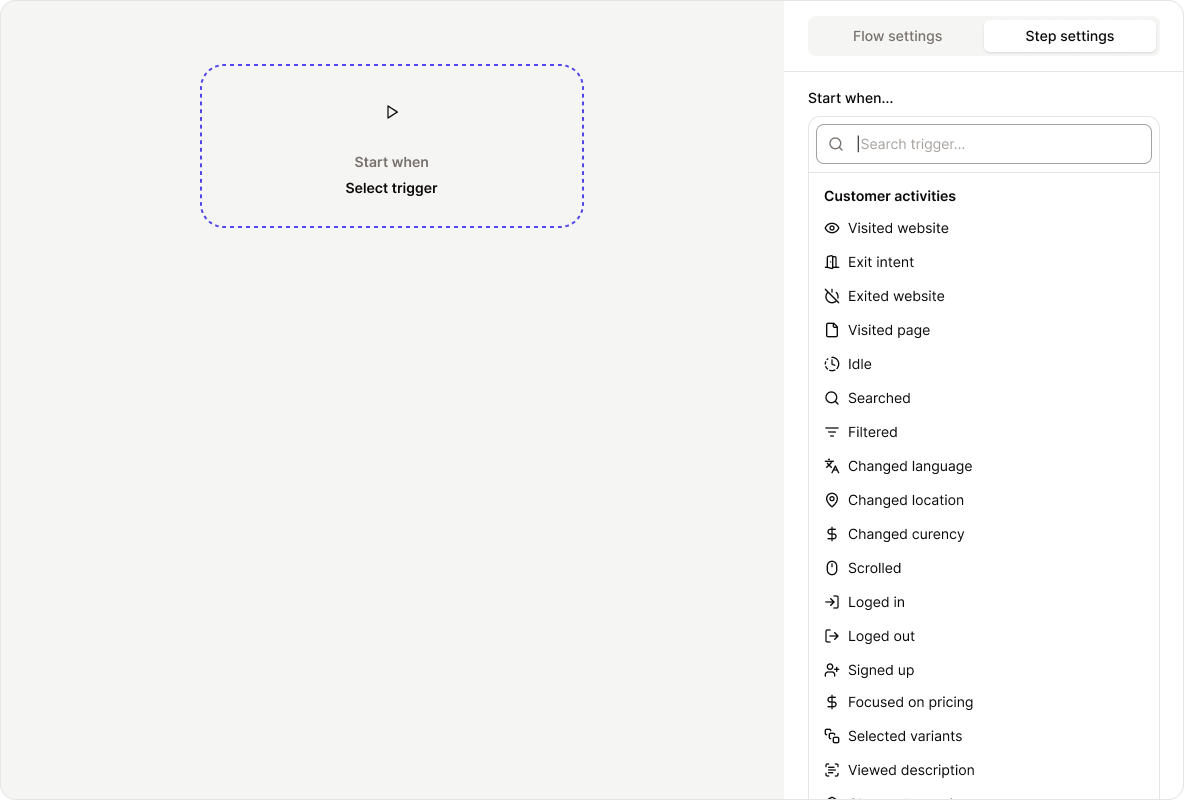 Click the Trigger step to edit it. The trigger settings will appear on the right.
Triggers fall into three categories:
* **Customer Activities**: Triggers based on user behavior (e.g., visits website, adds product to cart).
* **Admin Activities**: Actions taken by you or your system (e.g., campaign starts, product added).
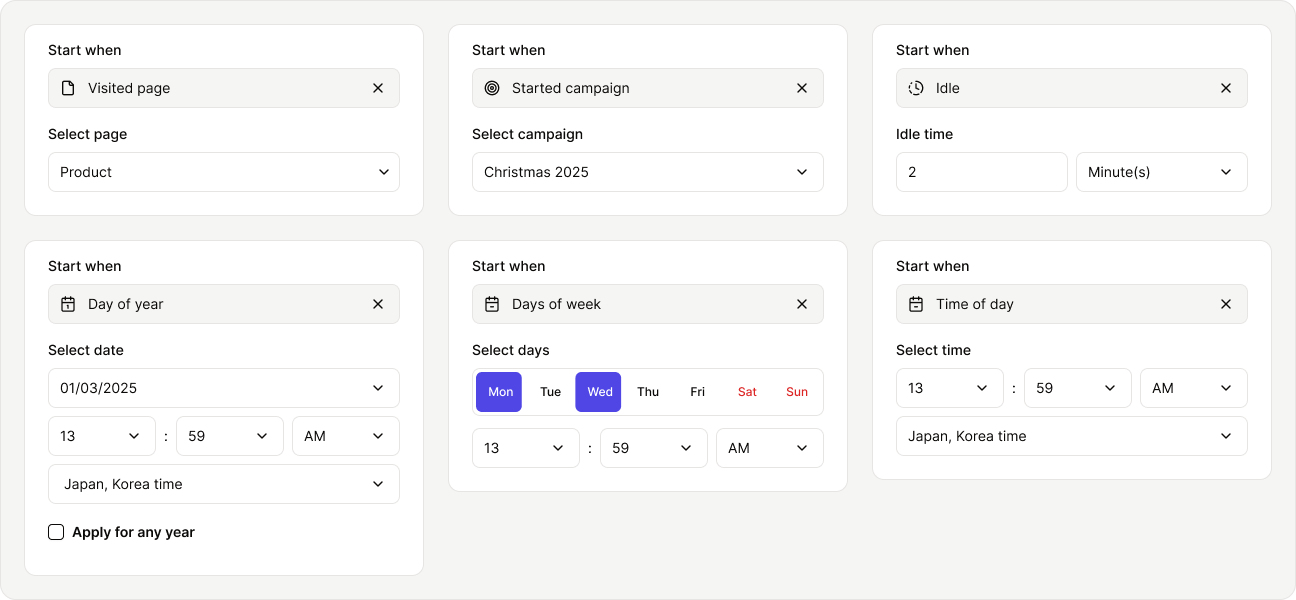
* **Scheduled Time**: Time-based triggers like a specific hour of the day, day of the week/month/year.
Examples:
Click the Trigger step to edit it. The trigger settings will appear on the right.
Triggers fall into three categories:
* **Customer Activities**: Triggers based on user behavior (e.g., visits website, adds product to cart).
* **Admin Activities**: Actions taken by you or your system (e.g., campaign starts, product added).
* **Scheduled Time**: Time-based triggers like a specific hour of the day, day of the week/month/year.
Examples:
 ### Add a new step
A **Step** is an action or logic block within a flow.
### Add a new step
A **Step** is an action or logic block within a flow.
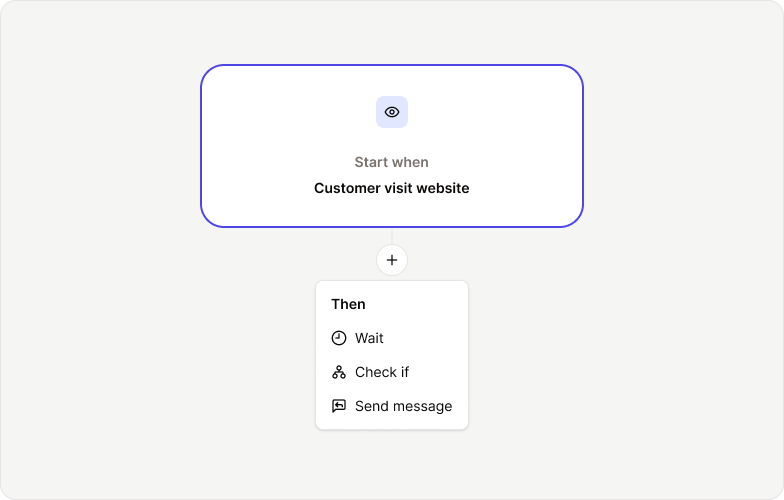 To add a new step, hover between existing steps and click the **+ icon**.
There are three types of steps:
1. **Wait**: Adds a delay between steps (e.g., wait 30 seconds).
2. **Check if**: A condition step used to create branches based on logic (e.g., is this a returning visitor?).
3. **Do this**: The action to perform (e.g., send a message).
To delete a step, click the trash icon in the top right corner of the step box.
### Wait step
The **Wait** step defines a pause before continuing to the next action.
To add a new step, hover between existing steps and click the **+ icon**.
There are three types of steps:
1. **Wait**: Adds a delay between steps (e.g., wait 30 seconds).
2. **Check if**: A condition step used to create branches based on logic (e.g., is this a returning visitor?).
3. **Do this**: The action to perform (e.g., send a message).
To delete a step, click the trash icon in the top right corner of the step box.
### Wait step
The **Wait** step defines a pause before continuing to the next action.
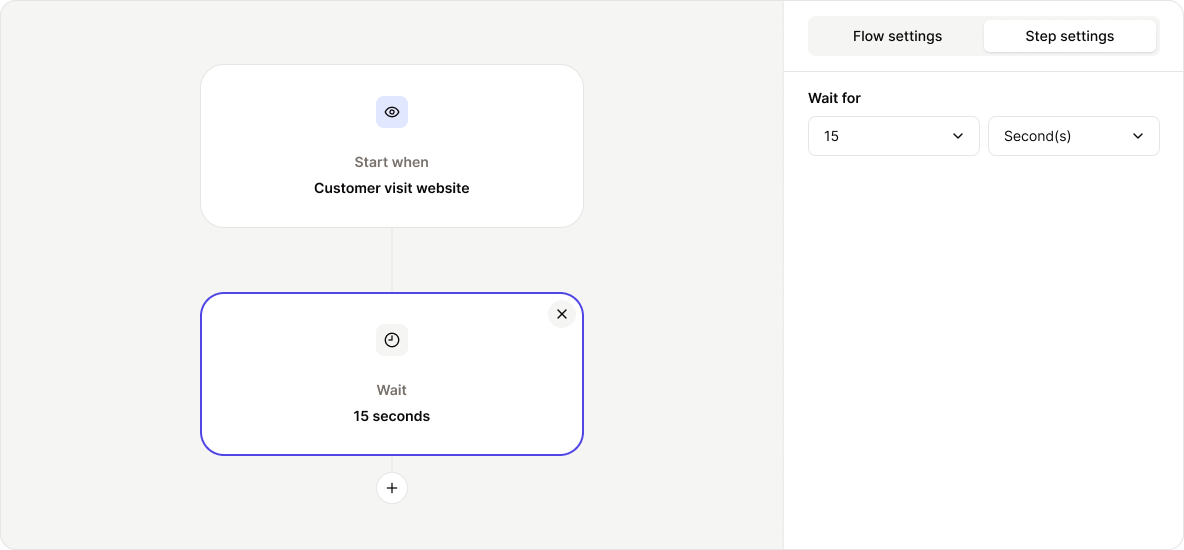 Choose the time unit (seconds, minutes, hours) and enter the desired delay.
### Check if step
The **Check if** step evaluates a condition to determine the next path.
Choose the time unit (seconds, minutes, hours) and enter the desired delay.
### Check if step
The **Check if** step evaluates a condition to determine the next path.
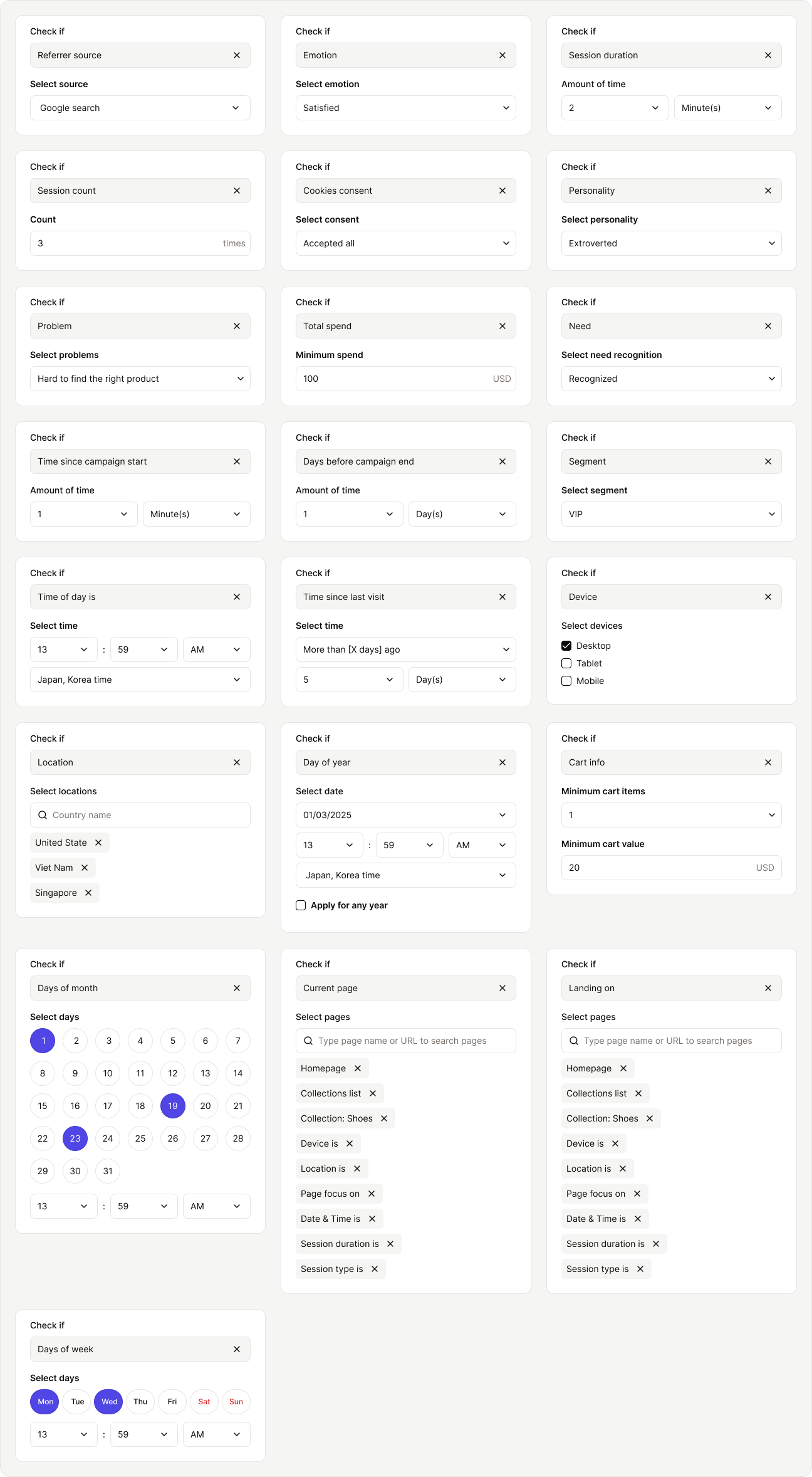
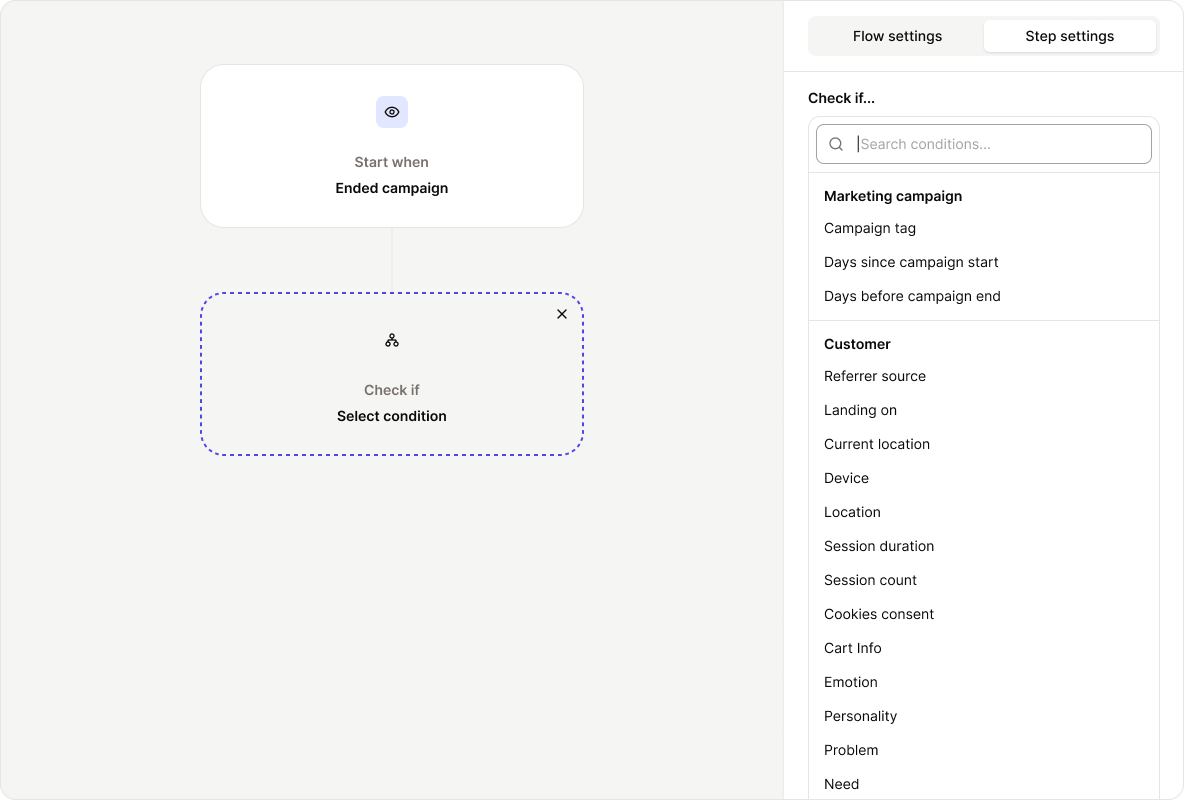 Condition types include:
1. **Triggered object attributes**: e.g., “3 days before campaign ends”
2. **Customer attributes**: e.g., gender, location, customer segment
3. **Time-based conditions**: e.g., specific hour, day, or date
Examples:
Condition types include:
1. **Triggered object attributes**: e.g., “3 days before campaign ends”
2. **Customer attributes**: e.g., gender, location, customer segment
3. **Time-based conditions**: e.g., specific hour, day, or date
Examples:
 ### Send message step
Use the **Send message** step to deliver a message to the customer.
### Send message step
Use the **Send message** step to deliver a message to the customer.
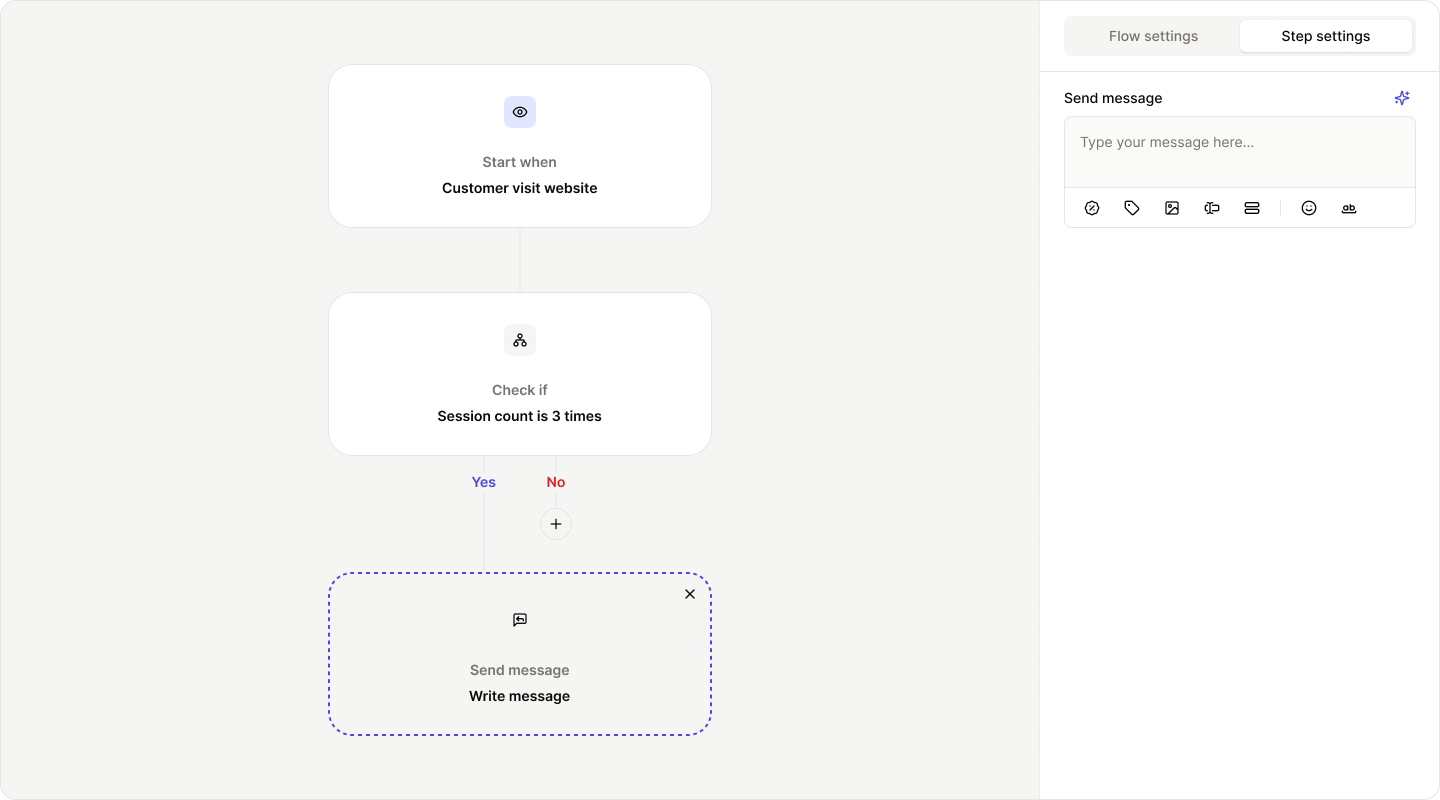 You can:
* Write a text message
* Attach product links, discount codes, images, or emojis
* Use **AI-generated message** by entering a prompt and letting NeoPal craft the content for you
You can:
* Write a text message
* Attach product links, discount codes, images, or emojis
* Use **AI-generated message** by entering a prompt and letting NeoPal craft the content for you
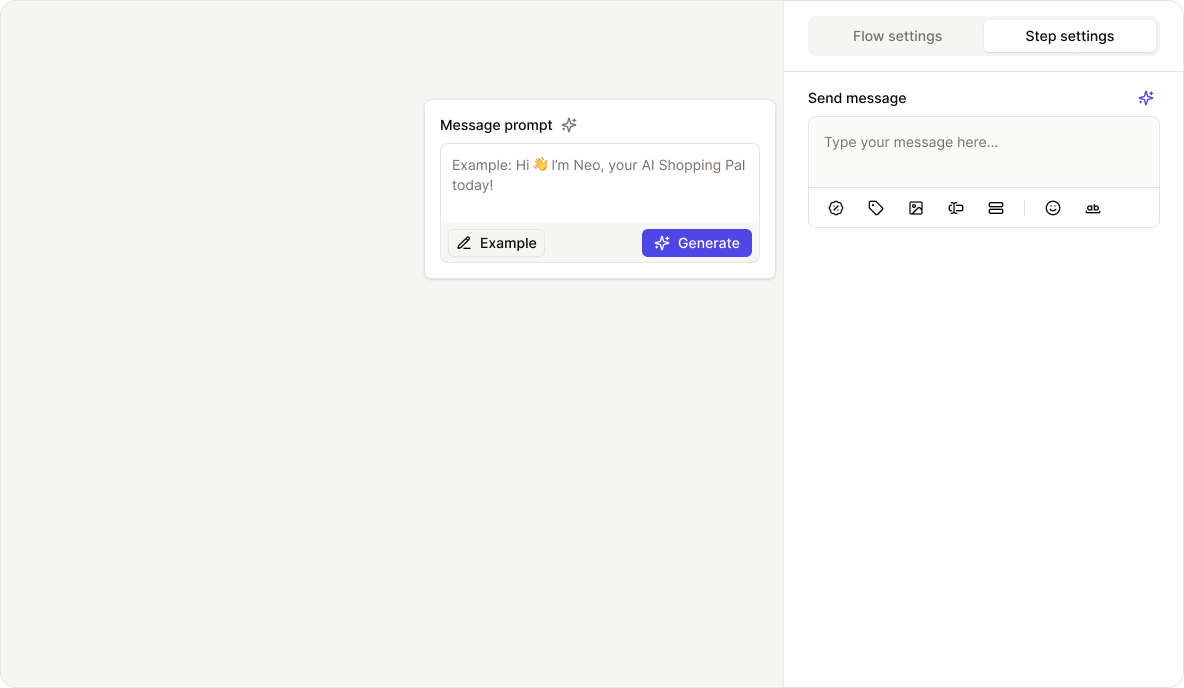 Message examples:
 ### Activate or pause flow
Once your flow is complete, turn it on by clicking the **Activate Flow** button.
### Activate or pause flow
Once your flow is complete, turn it on by clicking the **Activate Flow** button.
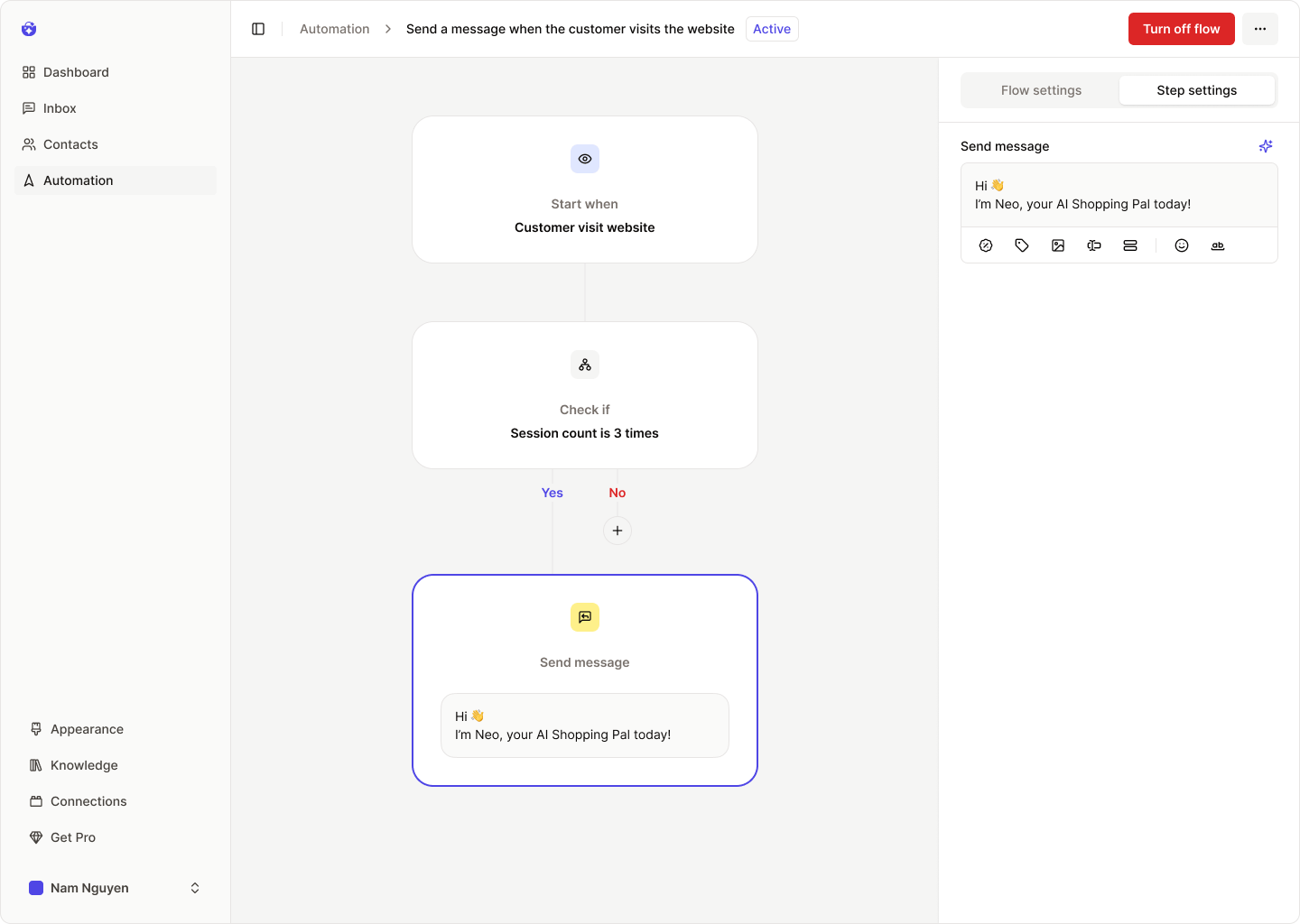 To pause the flow, use the **Turn off Flow** toggle in the header bar.
### Flow runs
To view flow performance, go to the **Flow Runs** tab (visible only after the flow has been activated at least once).
To pause the flow, use the **Turn off Flow** toggle in the header bar.
### Flow runs
To view flow performance, go to the **Flow Runs** tab (visible only after the flow has been activated at least once).
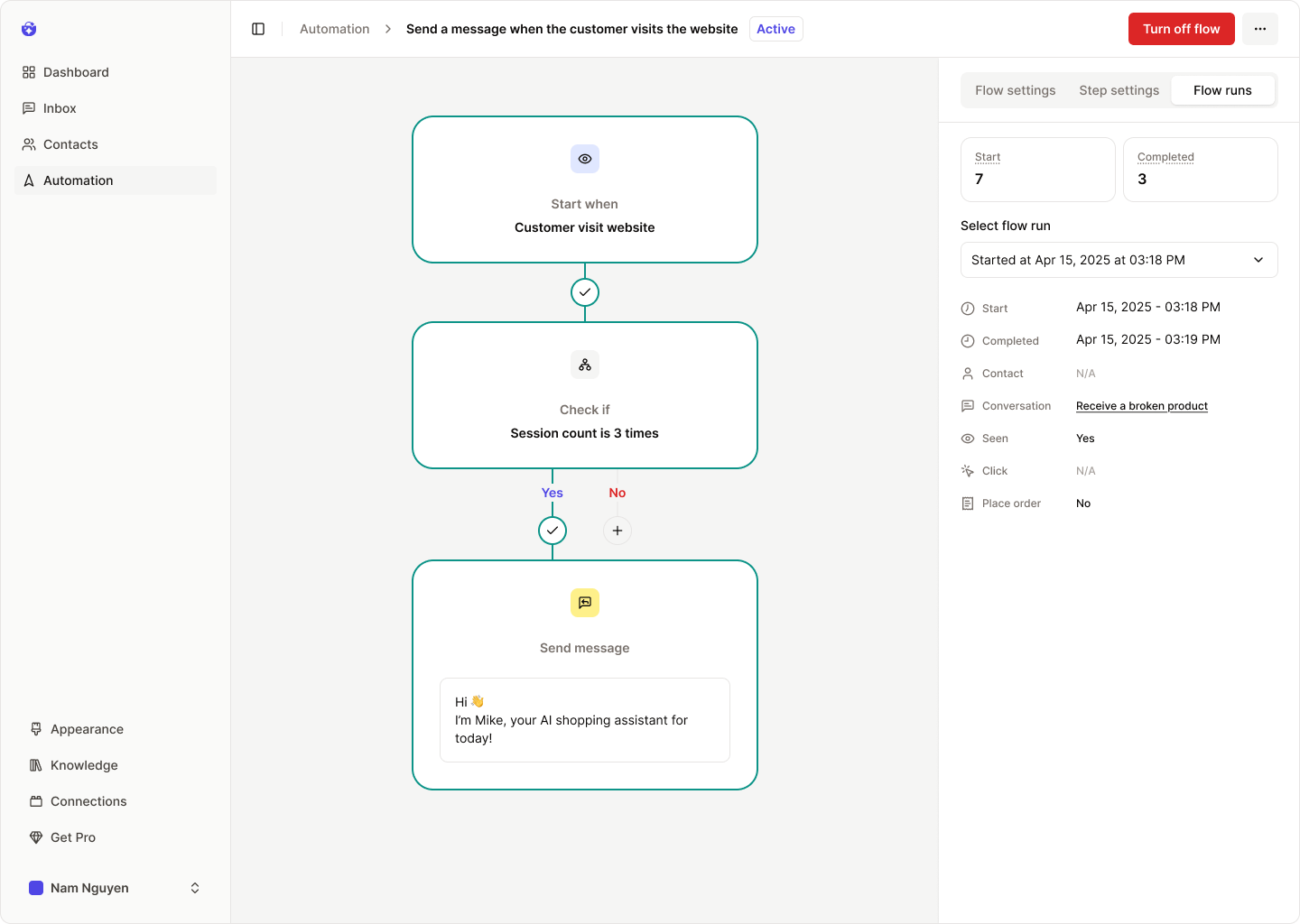 You’ll see key metrics such as:
* **Total runs**
* **Completion count**
Click any individual run to see detailed results:
* **Start**: When the flow started
* **Completed**: When the flow finished
* **Contact**: Who triggered the flow
* **Conversation**: Which conversation was active during the run
* **Seen**: Whether the message was viewed
* **Click**: Whether the CTA was clicked
* **Place order**: Whether the customer placed an order
You’ll see key metrics such as:
* **Total runs**
* **Completion count**
Click any individual run to see detailed results:
* **Start**: When the flow started
* **Completed**: When the flow finished
* **Contact**: Who triggered the flow
* **Conversation**: Which conversation was active during the run
* **Seen**: Whether the message was viewed
* **Click**: Whether the CTA was clicked
* **Place order**: Whether the customer placed an order