
Contacts list
Any customer who shares their email, phone number, or logs in via a chat/messaging platform is automatically added to your contact list.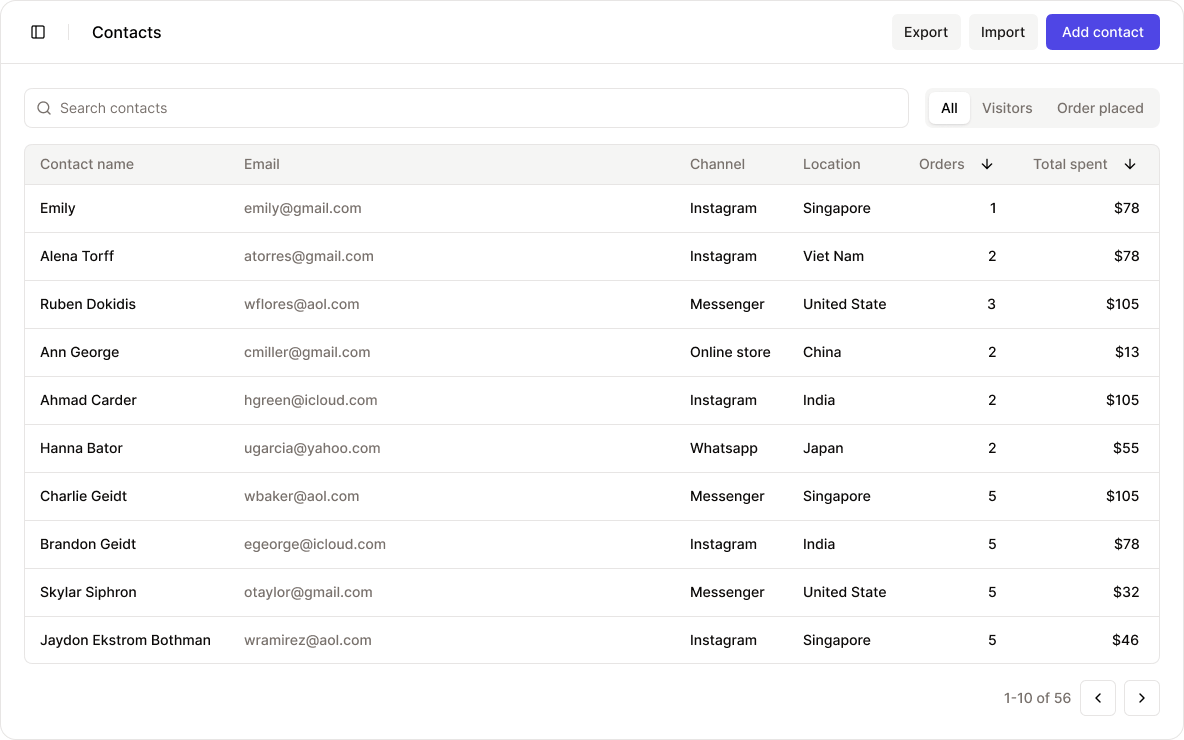
- Visitors only (those who browsed but haven’t purchased)
- Order placed (those who have completed a purchase)
Contact details
Clicking on a contact opens a detailed view where you can review customer insights and take action.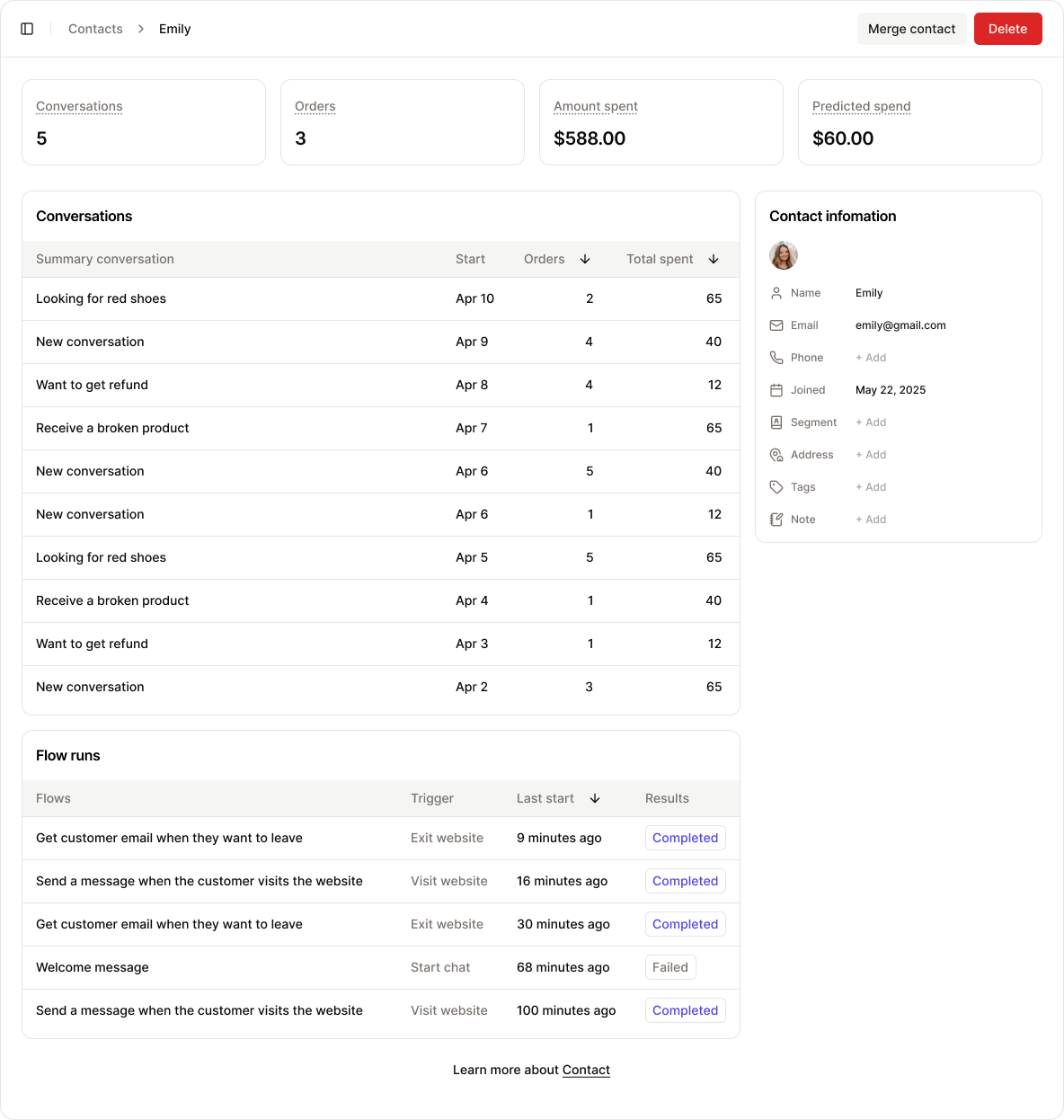
Deleting a contact does not remove associated conversations or automation flows. Those records will remain in the system for reference and tracking purposes.
Key metrics
These key performance indicators are tracked from the moment the contact is identified:
- Conversations: Total number of conversations with this customer
- Orders: Total number of orders placed through AI assistance
- Amount spent: Total amount spent by the customer
- Predicted spend: Estimated upcoming spending based on behavior and AI prediction
Contact information
This section displays general customer data collected through chats, order history, or manual entry: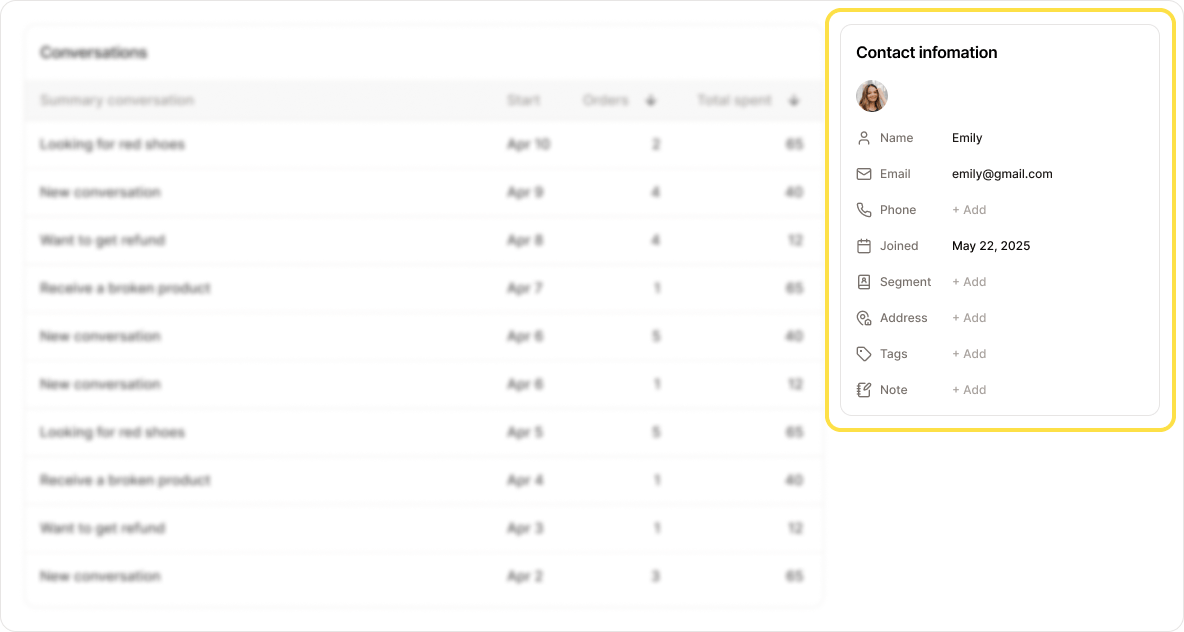
- Name
- Phone
- Joined: Date and time the customer started their first conversation
- Segment: Customer group (can be manually assigned or AI-suggested)
- Address
- Tags: Custom labels to help organize or classify customers
- Notes: Internal notes added manually or by Neo AI
Note: These fields are tied to an identified contact.
This differs from session-based data found in the Inbox, which may come from unrecognized visitors.
Conversations
This section lists all conversations associated with the contact since their identity was established.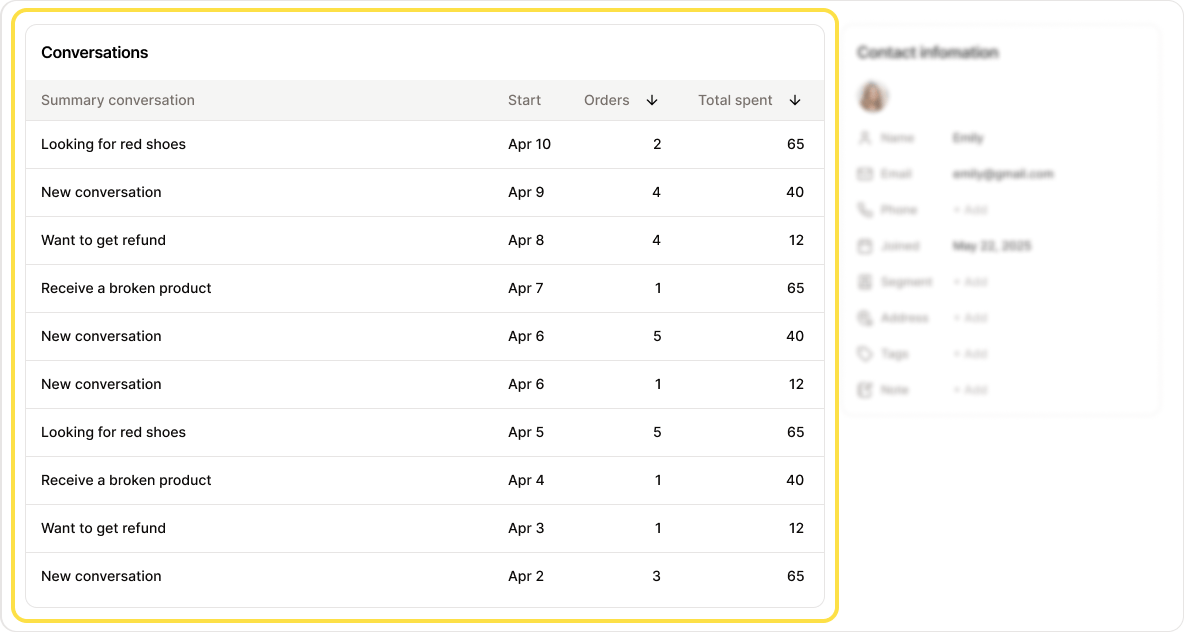
Flow runs
This section shows all automation flows that have been executed for this customer.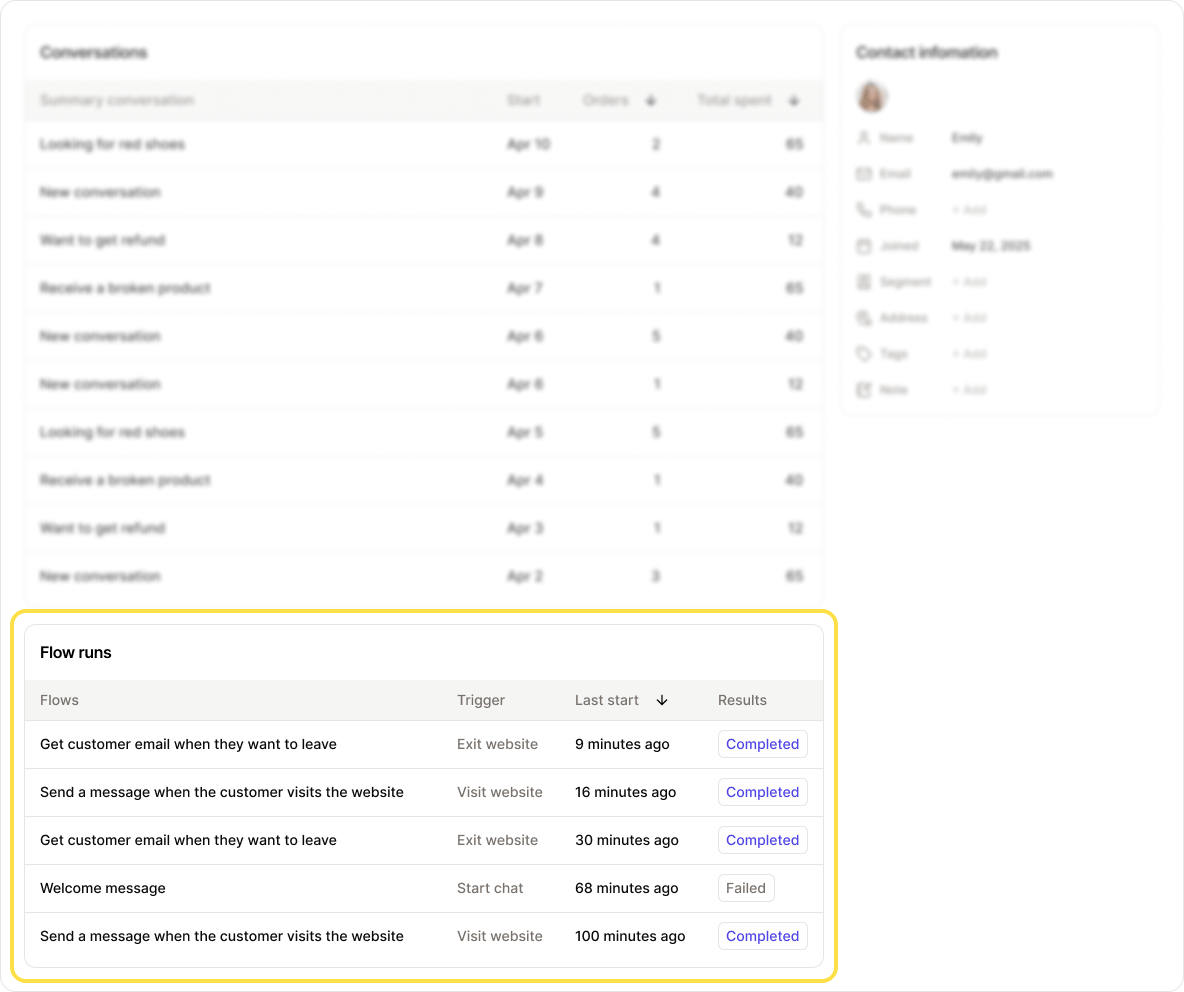
- Which steps were completed
- Which actions were triggered
- Any conditions that were met or skipped